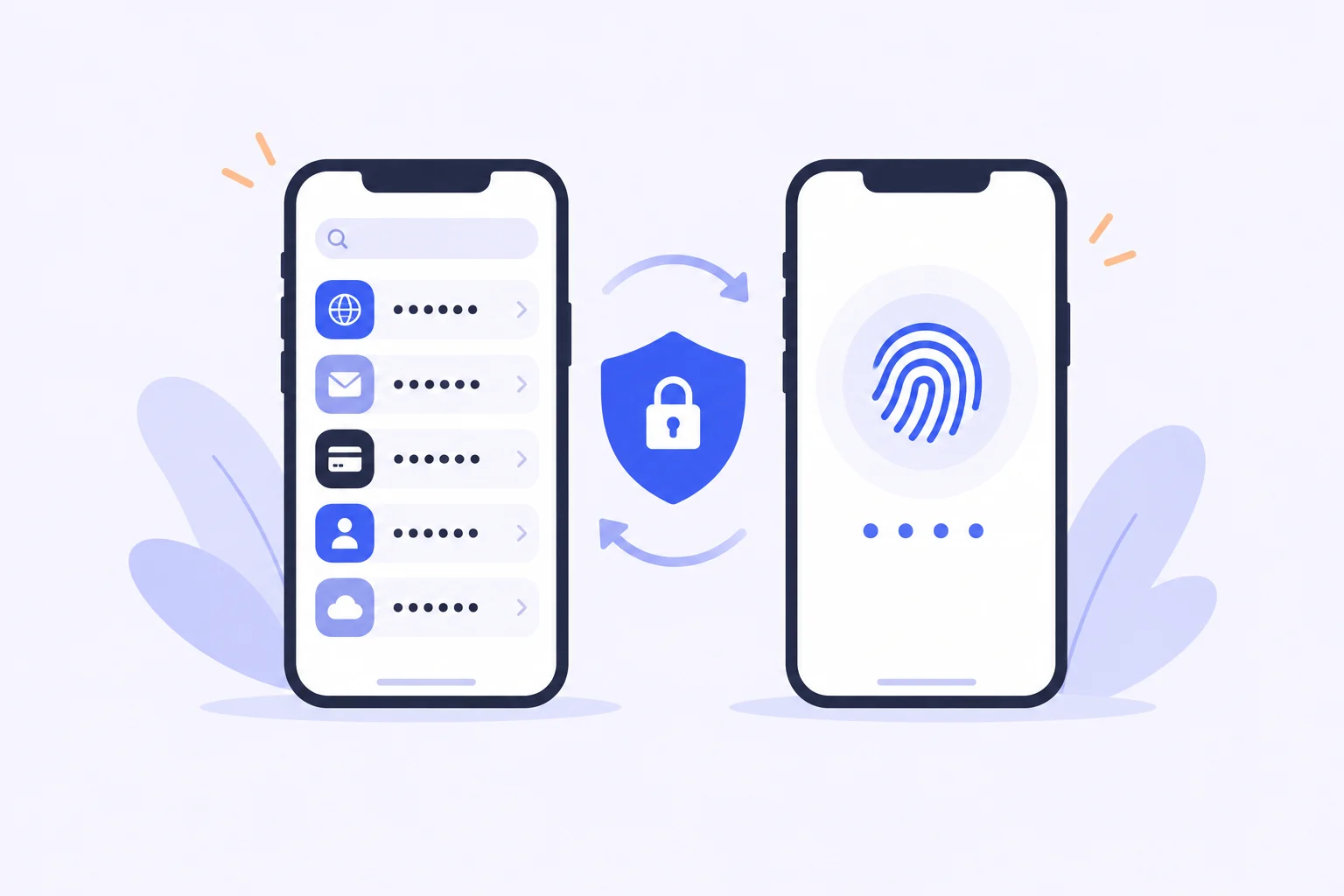
Your Phone Is Where Passwords Happen
Most logins now happen on a phone: apps, mobile web, in-app browsers for payment, one-time codes arriving by SMS. That makes the mobile app the most important surface of the Bitwarden Vault, yet plenty of users only ever install it and never tune it. The difference between an untuned mobile vault and a well-configured one is huge—the first feels like extra work at every login, while the second fills credentials faster than you could type them.
The setup takes about ten minutes once, and the habits it enables stick for life. Here is how to configure autofill, offline behavior, and security on both iOS and Android so the vault becomes the invisible assistant it is meant to be.
Set Up System Autofill First
The single most valuable configuration is enabling the vault as your system-wide autofill provider. On Android, this means activating the autofill service in the system settings and granting the accessibility or autofill permission; on iOS, it means selecting the vault in Settings under Passwords as the preferred password provider. After that, whenever an app or website asks for credentials, the keyboard suggests matching logins above it—one tap, done.
A quick bitwarden log in on the mobile app connects it to the same encrypted vault you use elsewhere, so every password you saved on desktop is instantly available in apps. For shared or multiple-account situations, long-press the suggestion to pick a different login for that site. Users who skip this step doom themselves to opening the app and copying passwords manually, which is the fastest way to conclude that a password manager is inconvenient—when the truth is simply that autofill was never switched on.
Biometric Unlock Changes Everything
Enable fingerprint or face unlock in the app's settings and the trade-off between security and speed disappears. Your vault locks itself after inactivity as configured, but re-opens instantly with the sensor you use dozens of times a day anyway. There is no reason to leave a mobile vault unlocked all day when the biometric path takes half a second, and every reason to lock it—phones get lost, borrowed, and pickpocketed far more often than desktops.
Also set an auto-lock timeout of a few minutes rather than "never," and enable the clipboard clearing option so copied passwords evaporate from memory automatically. These two settings close the most common mobile exposure windows: a vault that stays unlocked on a table, and credentials lingering in the clipboard where other apps could theoretically read them.
Passkeys and Passwords Side by Side
The mobile apps are also where passkey support shines. For sites that support FIDO2 passkeys, the vault can store the credential and approve sign-in with your fingerprint or face—no password typed at all. Because passkeys are phishing-resistant by design, upgrading your most important accounts to them is one of the best security moves available on mobile, and they sit in the same vault items as your existing passwords, so nothing gets scattered.
Not every site supports passkeys yet, which is fine: the vault simply uses the password when a passkey is unavailable and offers the passkey when it is. Over time, as more services adopt the standard, you will find yourself typing passwords less and less, while the vault quietly keeps doing the remembering for both worlds.
Offline Access and Sync Behavior
A question that comes up constantly: do mobile vaults work without internet? Yes. The app keeps an encrypted local copy of your vault, so credentials remain available in airplane mode, in basements, and on flights. Any changes you make offline sync back automatically once connectivity returns, and because the data is end-to-end encrypted, a stale local cache is never a security problem.
One nuance worth knowing: how long the app keeps the offline cache and how aggressively it syncs can be adjusted in settings, and users with very large vaults sometimes limit offline retention. For everyone else the defaults are sensible. If you notice an item saved on your desktop is missing on mobile, a manual sync from the app's menu resolves it instantly, and in practice such gaps are rare and short-lived.
Mobile Habits Worth Building
A few small habits round out the mobile experience. Use the built-in generator when signing up for new services on your phone, so strong passwords become the default rather than the exception. Star your everyday logins as favorites so they lead the suggestion bar. And when you receive a verification code for a site, store the backup of any 2FA setup inside the vault rather than in screenshots, which are the classic mobile leak.
Finally, keep the app updated. Mobile platforms change quickly, and each update brings new autofill behaviors, passkey improvements, and security patches. An updated vault app is the difference between mobile password management that hums along and one that fights the operating system's newest quirks.
Final Thoughts
The mobile app is where the Bitwarden Vault earns its keep every single day. Turn on system autofill, add biometric unlock, embrace passkeys where you can, and let the encrypted offline copy give you confidence in dead zones. Half an hour of setup on your phone transforms hundreds of future logins from friction into a single tap—and that is the entire promise of password management, delivered where you actually need it.